
What does the SendFox Dashboard show?
The SendFox Dashboard is the first page you see after you log in: recent activity, this week’s numbers, list growth, email health and next steps. Every plan.
What does the Dashboard show?
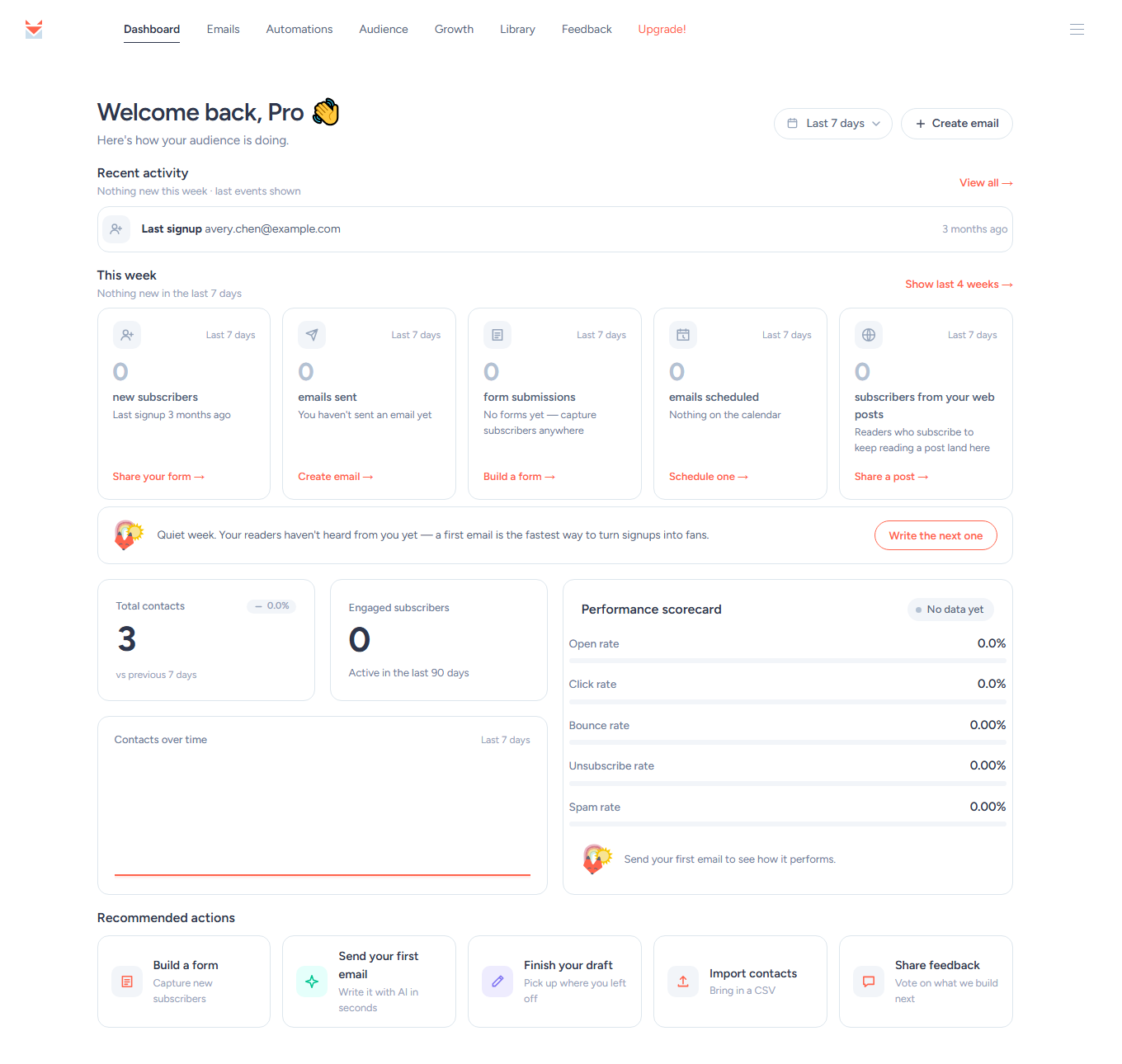
Open it any time from Dashboard in the top menu. Under the Welcome back header you’ll find, from top to bottom: Recent activity, a summary of the period you picked (This week by default), your contact numbers and Performance scorecard, and Recommended actions. The Create email button at the top right starts a new email.
Use the range selector next to it to choose the period: Last 24 hours, Last 7 days (the default), Last 4 weeks, Last 12 months, or All time.
The Dashboard is the same on every plan: Free, Lifetime and Pro.
A brand-new account also sees a Get started with SendFox checklist at the top for its first 10 days. It tracks six steps — Verify your email, Import your contacts, Send your first email, Customize your Smart Page, Set up an automation, and Get Pro — shows how far along you are, and disappears once every step is done or the 10 days are up. Click anywhere on an unfinished step’s row to start it; the verify row has Resend email instead, in case the link didn’t arrive.
Your Smart Page is live from the start, so its row also shows a signup link with a Copy link button: share it right away, or after you’ve added your photo and said what you send. See how to create a Smart Page.
What is Recent activity?
Recent activity lists what just happened on your account: new subscribers (and the form they used), clicks, and opens on your latest email. It always covers the last 7 days, whatever range you picked. In a quiet week it shows your last signup or send instead. Click View all to open Contacts → Activity for the full history.
What do the This week cards show?
The next section follows your range selector (it reads This week for Last 7 days, Today for Last 24 hours, and so on) and has five cards, each with a count and a shortcut:
- new subscribers — people who joined in the period, with Share your form.
- emails sent — your sends, with how many inboxes your last email reached and its opens and clicks, plus Create email.
- form submissions — signups through your forms, with Check embed (or Build a form if you don’t have one yet).
- emails scheduled — what’s queued to go out, with Schedule one.
- subscribers from your web posts — readers who entered their email to keep reading an email you published to the web, with See which posts (or Share a post while the count is still zero).
If nothing has gone out for a while, a short note below the cards nudges you with Write the next one.
What do the contact numbers mean?
- Total contacts — everyone on your account, with the change against the previous period of the same length (there’s no comparison for All time).
- Engaged subscribers — contacts who opened an email in the last 90 days. This count always uses 90 days. See contact types.
- Contacts over time — a chart of your total contacts across the selected range.
How does the Performance scorecard work?
The Performance scorecard grades five email-health metrics for the campaigns you sent in the selected range: Open rate, Click rate, Bounce rate, Unsubscribe rate, and Spam rate. Each gets a color-coded bar — green means healthy, yellow means keep an eye on it, and red means it needs attention — and the card sums it up as Healthy, Watching, or Needs attention. Hover any metric to see the target SendFox suggests for it. Until you’ve sent your first campaign, the scorecard reads No data yet; if you haven’t sent anything in the selected range, it reads No recent sends.
What are Recommended actions?
Recommended actions suggests up to four next steps based on your account — for example Finish your draft, Follow up with clickers, Share your signup form, Share your recent post or Put your recent post on the web for an email you sent in the last 30 days, or Upgrade for more contacts once you’ve used 80% of your contact limit. The suggestions refresh about once an hour. When there’s nothing specific to suggest, you’ll see the basics:
- Write with AI — draft an email with the AI writer.
- Import contacts — bring in a CSV. See create a list and upload contacts.
- Build a form — capture new subscribers. See create a form.
- New automation — set up a welcome or drip series. See how automations work.
The last tile, Share feedback, opens the feedback form, where you can send the SendFox team your ideas.
Troubleshooting
My scorecard says “No data yet” or my rates show 0%
- The scorecard and rates only fill in after you’ve sent a campaign and recipients have engaged. New accounts show No data yet until then.
- No recent sends means nothing went out in the selected range — pick a longer range, such as Last 4 weeks.
The numbers look off
- Check the range selector: it sets the summary cards, Total contacts, the chart, and the scorecard. Recent activity always shows the last 7 days and Engaged subscribers always counts 90 days.
Some sections or shortcuts are missing
- A brand-new account shows Nothing to report yet, and Recent activity stays hidden until something happens on the account.
- If your account’s sending is paused or restricted, the Dashboard stays available but Create email, the scheduling shortcuts, and the checklist are hidden. See why an account is paused or restricted.
Still stuck? See quick answers in the SendFox FAQ, browse the SendFox Help Center or email support@sendfox.com.
Frequently asked questions
What counts as an “engaged” subscriber?
A contact who opened one of your emails in the last 90 days. See Understanding contact types.
What do the scorecard colors mean?
Green is healthy, yellow is worth watching, and red needs attention. Hover a metric to see the target SendFox suggests for that rate.
Which timezone are the charts in?
Your Dashboard charts are grouped by day in your account's timezone, so "today" matches your local day rather than UTC. If a day's figures look shifted, check the timezone on your profile under Settings → Profile.
How often do the numbers update?
Every time you open the Dashboard, the numbers load fresh; Recommended actions refresh about once an hour. Give a recent send a little time for opens and clicks to come in.