How to create a list and upload contacts?
Create a list in Audience → Lists → Create list, then upload a CSV, paste contacts, or import them from MailChimp, Kit or Google. The Free plan includes 3 lists.
How do I create a list?
- From the top nav, open Audience → Lists.
- Click Create list, enter a List Name, and click Create List. The same page can import contacts into the new list straight away.
The Free plan includes up to 3 lists; Lifetime, Pro and Enterprise have no list limit. On every plan, imports count toward your plan’s contact limit.
How do I upload contacts to a list?
You can bring contacts in a few ways: upload a CSV file, paste them in, or import them from MailChimp, Kit or Google. Moving from MailChimp? See How do I switch from Mailchimp to SendFox?.
- Start an import in one of three ways: click Create list on the Lists page; open a list’s ⋮ menu and choose Import contacts; or click Import contacts on Audience → Contacts.
- Choose Upload a file (Import contacts from a CSV file) and select your file.
- Map the columns if prompted — one column must be mapped to Email — then confirm to add the contacts to your list.
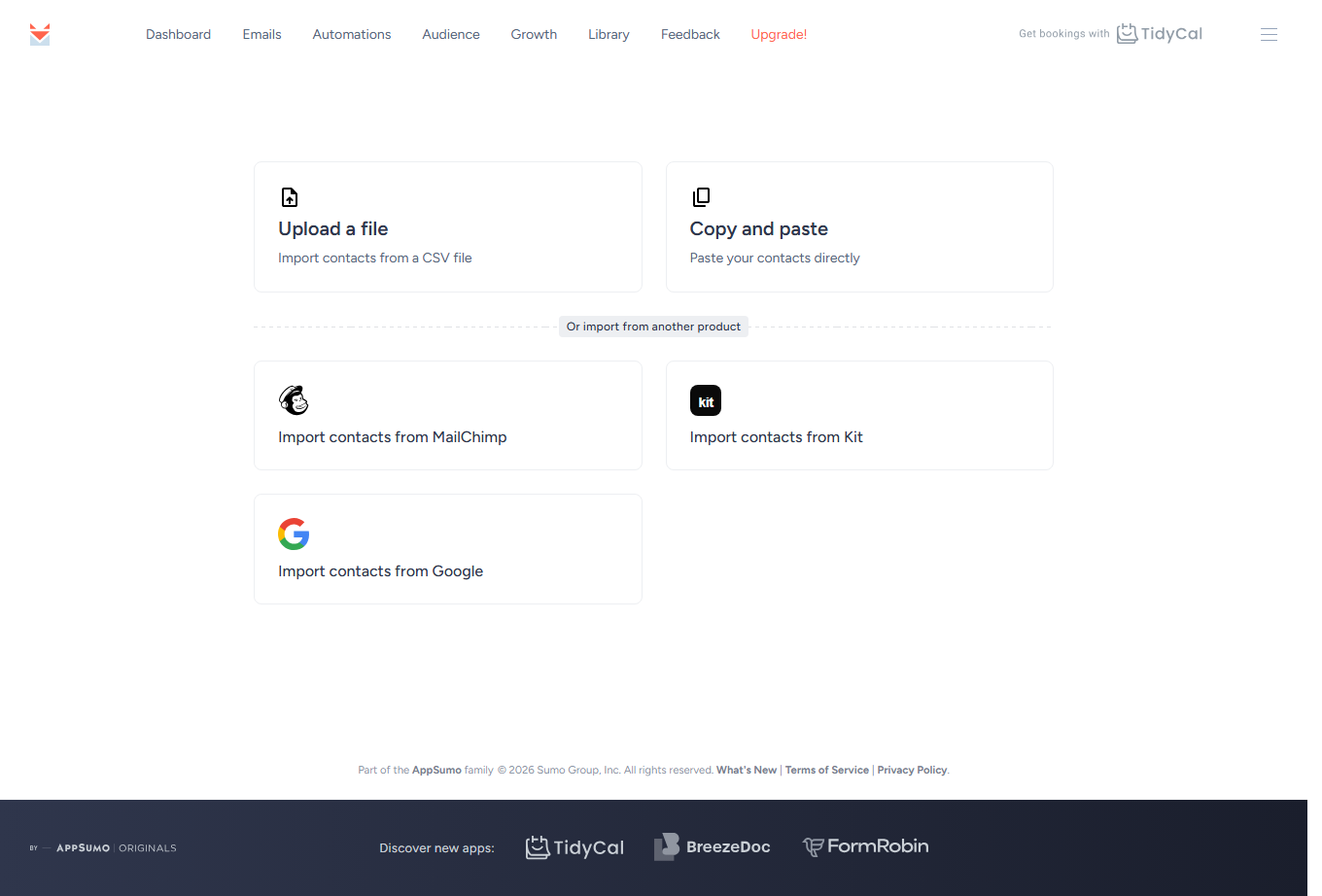
Importing from Google works the same way: after you connect your Google account, SendFox pulls in your Google contacts. You can create a new list or choose Select an existing list to add them to a list you already have. If SendFox can’t fetch your contacts, a Reconnect Google button appears — click it to refresh the connection and try again.
Prefer to watch? This short video walks through it:
How do I tag everyone I import?
While setting up the upload, use the Tag them on import panel to put a tag on everyone in the file. You can pick tags you already have or type new ones, which are created as part of the import.
This is the quickest way to label a batch — importing past customers, say, and tagging them all at once. It tags everyone in the file, including contacts already in your account.
What should my CSV look like?
Your CSV should have a column for email, plus optional first name and last name columns. Here’s the expected layout:

SendFox stores one contact per email address, so duplicate rows are merged automatically, and email addresses aren’t case-sensitive (Ann@example.com and ann@example.com are the same contact). See does SendFox create duplicate contacts when I upload a list? Exporting from another tool first? See How do I format a CSV file to import contacts into SendFox?.
Troubleshooting
My contacts didn’t import
- Make sure the file is a
.csvwith a column for email addresses. If SendFox says “We couldn’t find an email column in your file. Map one of your columns to Email and try again.”, map the column that holds the addresses to Email. - Rows without a valid email address are skipped.
My Google contacts didn’t come through
- Click Reconnect Google to refresh the connection, then start the import again. Only Google contacts that have an email address are imported.
My import count looks low
- That’s expected if your file has repeated emails — each unique email becomes one contact. If everyone in the file is already on the list, SendFox shows “No contacts were imported — we couldn’t find any new contacts with valid email addresses in your file.”
My CSV is refused because of my contact limit
- SendFox checks how many new contacts the file would add; people you already have don’t count. If they would take you past your plan’s contact limit, the import is refused — upgrade your plan to import more.
Still stuck? Search the Help Center or email support@sendfox.com with the list name, the import method you used and the exact message you saw.
Frequently asked questions
How many lists can I create?
Three on the Free plan. Lifetime, Pro and Enterprise have no list limit.
Is there a limit on how many contacts I can import?
Yes. A CSV can have up to 100,000 rows, and only contacts you don’t already have count toward your plan’s contact limit.
Can I add a CSV to a list I already have?
Yes. See uploading a CSV to an existing list.
Can I choose which confirmation email a list sends?
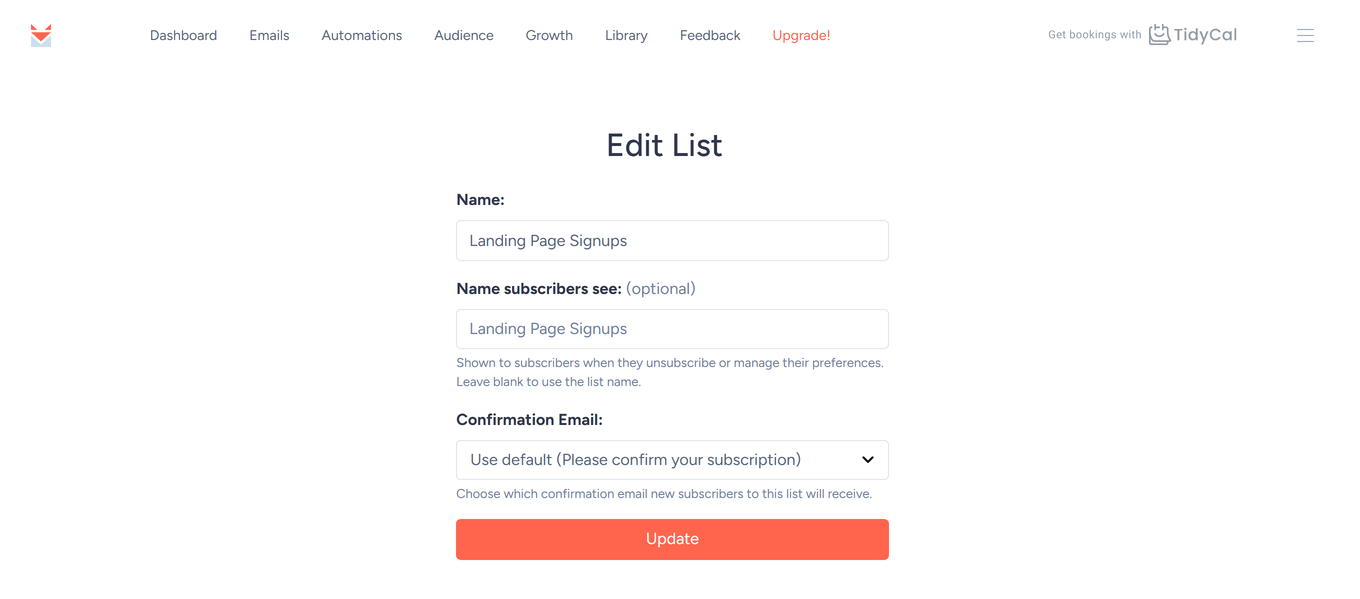
Yes. If your account uses double opt-in, open Audience → Lists, edit a list, and choose from the Confirmation Email dropdown — new subscribers to that list receive the confirmation email you pick (or your default). You can create more than one confirmation email and assign a different one per list. See double opt-in.