
How to create an email newsletter using templates?
To create an email newsletter from a template, click + New email or open Library in the editor. Save any email as a template; manage them in More → Templates.
How templates work in SendFox
Templates are reusable starting points for your newsletters: they store the design and content, plus the subject line and preview text. There are two kinds:
- Starters — ready-made layouts from SendFox.
- Your templates — the ones you save from your own emails.
You'll find them in the New email window, in the email editor's Library panel, and on the Templates page (More → Templates). Templates are available on every plan.
How do I create a newsletter from a template?
Start from the New email window
- Click + New email in the top navigation bar, or Create email on the Emails page.
- The New email window asks How do you want to start? Pick one:
- Most popular (30 days) — opens a copy of your best-opened email from the last 30 days, so you can reuse its layout with fresh content. Until you have one, this option reads Start with a newsletter layout and opens a starter.
- Write it with AI or Blank email — if you'd rather not start from a layout.
- Edit the content as usual, then send or schedule it—see how to create and send an email.
Use a template inside the editor
- In the email editor, click Library in the toolbar at the bottom.
- Pick the Starters tab for SendFox's ready-made layouts, or My templates for the ones you've saved (the tab shows how many you have). Use the Search box to filter by name.
- Click Use this on the template you want, or click Preview to look at it first and then Use this template. The template's design, subject, and preview text are applied to your email.
- If your email already has content, SendFox asks you to confirm first, because the template replaces it.

How do I save an email as a template?
From the email editor
- With your email open in the editor, click the arrow next to the Schedule / send button.
- Choose Save as template. In the Save template window, enter a Template Name and click Save new template. You'll see Template saved. when it's done.
- Already have templates? The window also offers Overwrite existing template: pick it, choose the template to replace, and click Overwrite template.
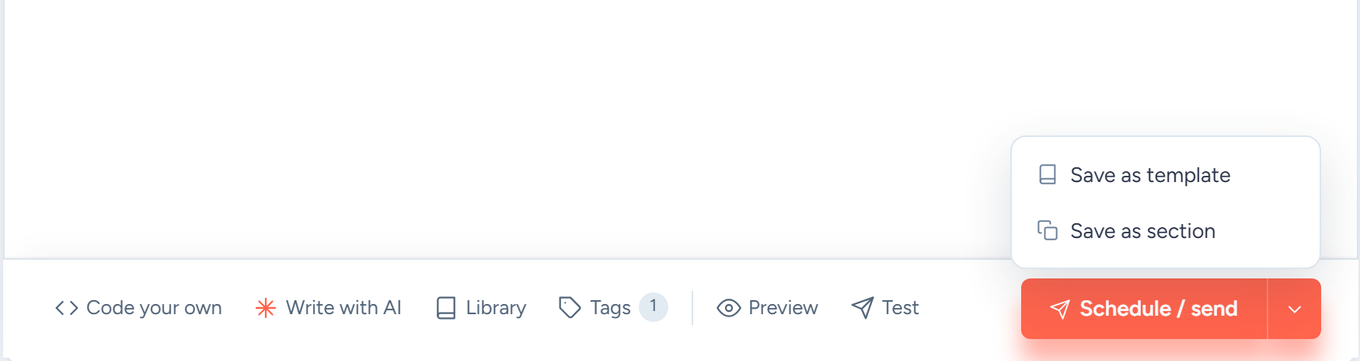
The arrow menu isn't available while you're editing in Code your own mode.
From the Emails page
- On the Emails page, open the email's ⋮ menu and choose Save as template.
- SendFox names the template after the email's subject (adding a number such as “(2)” if that name is taken) and opens the Templates page, where you'll see Saved “…” to your templates.
Confirmation emails don't have this option. If you don't have any templates yet, the Emails page may also suggest saving a recent email that got good opens—click Save as template on that banner.
Where do I manage my templates?
Go to More → Templates in the top navigation bar. The page has:
- Your templates — each with Use this (opens a new email based on it), Edit, and Delete.
- Starters — click Use this to start a new email from one.
- Create Template — build a template from scratch.

Reuse smaller pieces with Sections
If you only want to reuse part of an email—a header, a footer, a signup pitch—save it as a section instead: click the arrow next to Schedule / send and choose Save as section. Once you've saved one, the editor's Library panel shows a Sections tab; click Insert on a section to add it. Unlike a template, inserting a section adds the block to your email without replacing what's already there.
Troubleshooting
"A template with this name already exists."
- Template names must be unique in your account. Pick a different name, or choose Overwrite existing template in the Save template window to update the existing one. (Saving from the Emails page never hits this: SendFox adds a number to the name.)
I saved a template but can't find it
- Your own templates are on the My templates tab of the editor's Library panel and under Your templates on the More → Templates page. Starters only shows SendFox's ready-made layouts.
I don't see a Sections tab in the Library
- The Sections tab appears once you've saved a section. Save one with the arrow next to Schedule / send → Save as section.
Applying a template replaced my draft
- Use this applies the template to the current email, replacing its content — SendFox asks you to confirm first when the email isn't empty. To keep what you've written, save your draft as a template or section first, or start the template in a new email with Use this on the Templates page.
- More questions? Visit the SendFox Help Center at help.sendfox.com.
Frequently Asked Questions
Are templates a paid feature?
No—creating, saving, and using templates works on the Free plan too. (Your plan's monthly send allowance still applies when you send the newsletter.)
Does a template save my subject line?
Yes. Templates store the design plus the subject line and preview text, and they're applied along with the design when the template has them saved.
Can I use templates in automation emails?
Yes—automation emails open in the same editor, so the Library panel works there too. To save one as a template, use an email from Emails (its ⋮ menu or the editor's arrow menu): automation emails don't have Save as template. See how to create an automation.