
Do I need SPF or DKIM records for SendFox?
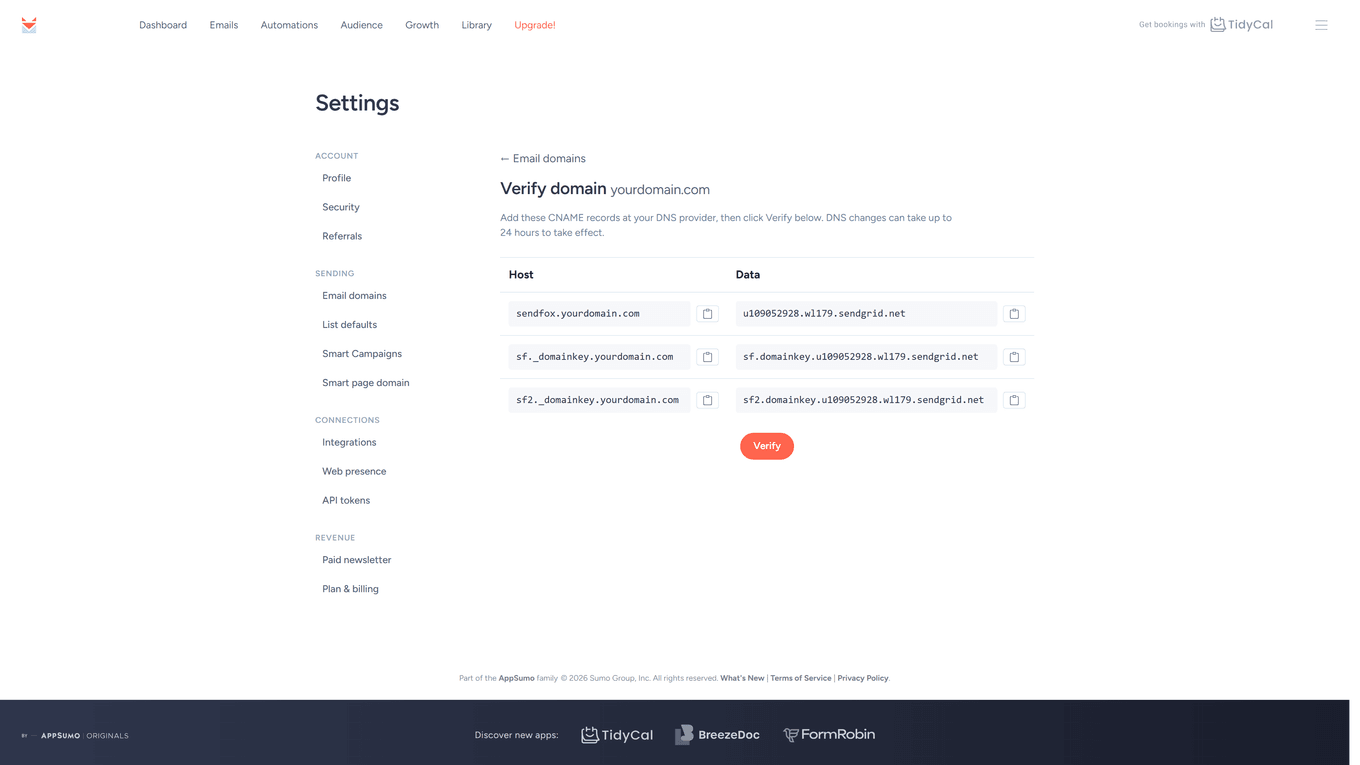
No. SendFox needs no separate SPF or DKIM TXT records: validating your domain under Settings → Email domains adds three CNAME records, two of them DKIM. Every plan.
What does SendFox set up for me?
Plans: domain validation works on every plan, including Free.
- Before you validate a domain: your emails send from mail@sendfoxmail.com, SendFox's own sending address — there's nothing for you to set up. See Why are my emails sent from mail@sendfoxmail.com?
- When you validate your domain: the three CNAME entries SendFox gives you are the authentication setup. Two of them (the sf._domainkey and sf2._domainkey records) are your DKIM keys, and the third (sendfox.yourdomain.com) points your domain at SendFox's sending service — no separate SPF or DKIM TXT records are needed.
How do the CNAME records handle authentication?
Instead of asking you to create and maintain TXT records, the CNAMEs delegate authentication to SendFox's sending infrastructure. Mailbox providers checking your DKIM signature follow the CNAME to records that SendFox's sending service manages for you. To set them up, follow How do I validate my sending domain in SendFox? If your DNS host is GoDaddy, NameCheap, DreamHost or Google, see Validating your domain at GoDaddy, NameCheap, DreamHost or Google.
Troubleshooting
My DNS provider's guide says I need an SPF TXT record
- That guidance is for servers that send mail directly from your domain. SendFox sends through its own authenticated infrastructure, so the three CNAME entries are all you add.
My CNAME records won't validate
- See Why is my SendFox domain validation not working? — propagation delays and host-column quirks are the usual causes.
Still stuck? Search the Help Center or email support@sendfox.com with your domain, your DNS host and a screenshot of the Verify domain page.
Frequently Asked Questions
Do I need a DMARC record?
No, SendFox doesn't require a DMARC record. Publishing a DMARC policy for your domain is up to you, and it's managed in your own DNS.
Do I have to validate my domain at all?
No, it's optional but recommended — once your domain is validated, your emails send from your own address instead of mail@sendfoxmail.com. See How do I validate my sending domain in SendFox?
Which of the three records are the DKIM ones?
The two Host entries that start with sf._domainkey and sf2._domainkey. They're created for you when you add a domain — just copy them into your DNS settings.
Can I validate my domain on the Free plan?
Yes. Domain validation works on every plan: Free, Lifetime and Pro.